

Yoast SEO Tools: Bulk Editor
In this article, we’ll discuss the Yoast SEO Bulk Editor. We’ll explain:
- What is the Bulk Editor feature
- What you can do with the tool
- How to use the feature
What is the Bulk Editor feature?
The Bulk Editor lets you update the SEO titles, meta descriptions, social titles, and social descriptions of your posts, pages, and products from a single screen. With Yoast WooCommerce SEO, you can also generate product image alt text in the Image alt text tab.
Instead of opening each page individually, you can quickly review and edit your metadata in one centralized overview.
What can you do with the tool?
The Bulk Editor tool by Yoast SEO helps you save time when updating metadata across your website. It’s useful for content audits, SEO refreshes, and smoother editorial workflows.
Here’s what you can do with this tool:
- Edit SEO titles and meta descriptions in bulk
- Update social titles and descriptions from a single screen
- View focus keyphrases as you review your content
- Search and filter posts and pages to find content faster
- Generate AI-powered SEO title suggestions for multiple pages (available with eligible paid plans)
- Generate alt text for your product images with Yoast AI Generate for image alt text (Yoast WooCommerce SEO and Yoast SEO AI+)
How to find the Bulk Editor tool
You can find the Bulk Editor in two ways:
From the Yoast SEO plugin menu
You can find the Bulk Editor by going to your WordPress Dashboard, opening Yoast SEO, and clicking on Tools. On this page, you’ll find the Bulk Editor.

From the Posts or Pages overview
You can also access the Bulk Editor page directly from the Posts or Pages section of your WordPress dashboard.
Follow these steps:
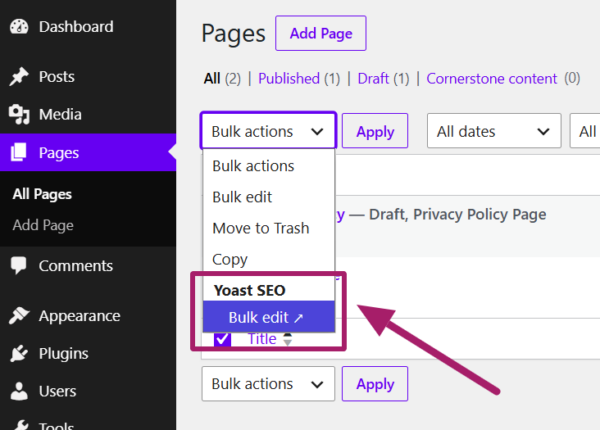
1. Log in to your WordPress dashboard and visit the Posts or Pages.
2. Select the content type you want to bulk edit.
3. Click the Bulk actions drop-down menu and select the Bulk edit option under Yoast SEO.
4. You will be directed to the Bulk Editor dashboard.
How to use the Bulk Editor feature?
The Bulk Editor tool lets you update your search metadata and social titles and descriptions for multiple WordPress posts and pages from a single place. Here’s what you can do with the feature and how to use it.
Follow these steps to update your search or social metadata in bulk:
- Visit the Bulk Editor tool page
In your WordPress dashboard, go to Yoast SEO > Tools > Bulk editor.

- Choose the posts or pages you want to edit from the left-hand menu.

- Select the Search appearance tab to edit SEO titles and meta descriptions, or the Social appearance tab to edit social titles and social descriptions. For products, select the Image alt text tab to generate and review alt text.

- Find the content you want to update
You can use the search bar or filters to locate specific posts or pages.

- Update and save metadata
Update the metadata for an individual page by selecting Edit, or select multiple pages to edit them in bulk.

- When you’re finished, click Save edits to apply your changes.

Generate metadata with AI
If you have a paid Yoast plan, you can generate SEO titles and meta descriptions with AI for selected pages.

Generate image alt text with AI
If you have an active Yoast WooCommerce SEO or Yoast SEO AI+ subscription, you can use Yoast AI Generate for image alt text in the Image alt text tab. It covers featured, gallery, and variation images. Each product needs a focus keyphrase, which you can add right here, and you review every suggestion before it saves. You need WordPress 7.0 and Yoast SEO 28.8 or later.
To learn how to generate and review image alt text suggestions for your products, read our guide to Yoast AI Generate image alt text with Yoast AI Generate.

Get Yoast SEO Premium
Drive more traffic to your site. Use AI to save time doing SEO tasks. Make SEO easier. And get 24/7 support.
Includes Local SEO, Video SEO & News SEO.
Did this article answer your question?
Still having issues?
Try searching for your issue below