

Configuration guide for Yoast WooCommerce SEO
Once you’ve set up the Yoast WooCommerce SEO plugin, you’ll want to set things up so they work the way you want them to. In this configuration guide, we’ll show you how to do that.
Where to find the Yoast WooCommerce SEO settings
To find the Yoast WooCommerce SEO settings, follow the instructions below.
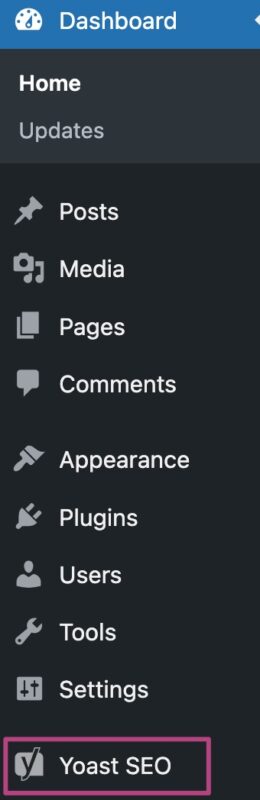
- In your WordPress Dashboard, go to Yoast SEO
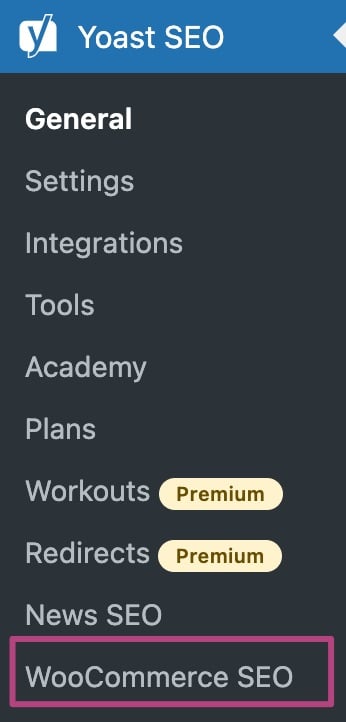
- Go to WooCommerce SEO
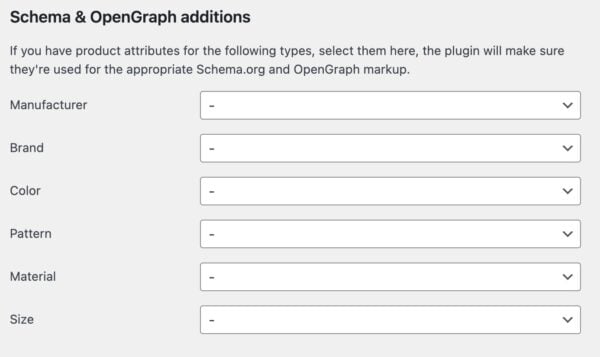
Schema & OpenGraph additions
Here, you can add product attributes. It will help the plugin produce the correct structured data that will let search engines know more about your products. It also allows for better sharing on social media platforms, like Facebook and X.
What are product attributes?
Product attributes are the characteristics of a product. With Yoast WooCommerce SEO, you can specify things like the manufacturer, brand, color, pattern, material, and size. The plugin automatically adds these attributes as Schema properties to the source code of your product pages. This helps show rich snippets in Google for products.
However, to make Yoast WooCommerce SEO output these Schema properties, you will need to create attributes in WooCommerce first. Learn how to do that in this help article How to add custom attributes to your products. After creating them, you can select them in the dropdown menus of the Schema & OpenGraph additions.
For a full list of the Schema output, see our WooCommerce SEO Schema Documentation Guide.
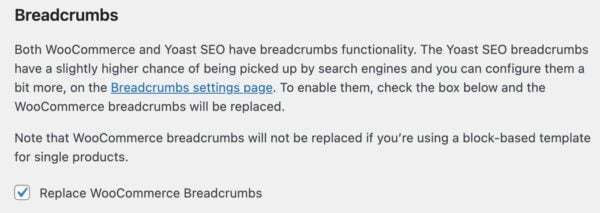
Breadcrumbs
If you have Yoast SEO breadcrumbs enabled, we recommend ticking Replace WooCommerce Breadcrumbs.
Admin
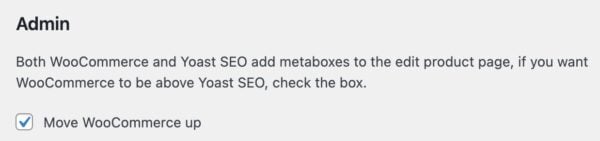
The second part of the settings, below Admin, allows you to change the order of the WooCommerce and Yoast SEO meta boxes. If you want the WooCommerce meta box to show up above the Yoast SEO meta box, tick the box Move WooCommerce up.
Product identifiers
When you edit your products, you can also add multiple Product identifiers with Yoast SEO. Click on the Yoast SEO tab in the Product data meta box to add product identifiers.
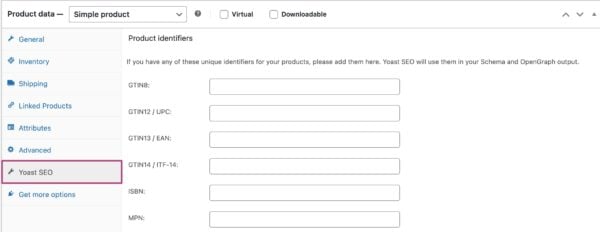
If your products have any of the listed unique identifiers you can add them in the appropriate field. Yoast SEO will use them in your Schema and OpenGraph output.
Pinterest rich pins
The plugin will output WooCommerce’s price, currency, and availability metadata for use with Pinterest’s Rich Pins. Below is the metadata that the WooCommerce SEO plugin outputs::
<meta property="product:price:amount" content=""/>
<meta property="product:price:currency" content="USD"/>
<meta property="product:availability" content="instock"/>
In order to get rich pins, you will need to validate and apply for them. Please use this guide here for more information: Rich Pins for My Site.
XML sitemaps
The Yoast WooCommerce SEO plugin also does some things automatically, like removing anytnig from the XML sitemaps that doesn’t belong there like WooCommerce’s Cart, My Account, and Checkout pages.
It also adds images from the Product Gallery into the sitemap.
Schema
WooCommerce SEO outputs several schema types based on the information you enter into WooCommerce. For full listing of all the schema types see: WooCommerce SEO Schema Documentation
With aggregateRating schema, you need to have at least one review before the plugin can output it.
Metabox notifications
Yoast WooCommerce SEO adds extra assessments to the Yoast SEO metabox.
One assesses the length of your short product description. Specifically, it looks at the word count and considers 0 as having no words, 1-19 as short, 20-49 as good, and 50+ as long.
Yoast WooCommerce SEO assesses the alt text on the images that show your product: the featured, gallery, and variation images.
With Yoast WooCommerce SEO or Yoast SEO AI+, you can use Yoast AI Generate for image alt text to create alt text for your product images. Add a focus keyphrase first, then review each suggestion before you apply it. In the product editor, click Generate image alt text next to the Image alt attributes assessment. To work through your whole catalog, use the Image alt text tab in the Bulk Editor.
Check the following help articles for more information:
- How to use Yoast AI Generate for titles, descriptions, and image alt text in WordPress
- Yoast AI Generate for image alt text
However, with regards to setting up the plugin: you’re done! Have fun!

Get Yoast SEO Premium
Drive more traffic to your site. Use AI to save time doing SEO tasks. Make SEO easier. And get 24/7 support.
Includes Local SEO, Video SEO & News SEO.
Did this article answer your question?
Still having issues?
Try searching for your issue below